
Literature for Our Time
Course Number: EN113
Subject: English
Introduction 
This guide is part of an in-class workshop about finding a secondary source (academic journal article, book review, author interview, author profile) for your essay.
Questions? Contact the English & Film Studies Librarian, Meredith Fischer (mefischer@wlu.ca).

Why Omni (the Laurier Library Search Tool)?
Different search tools are good for different things, and it's important to choose one that makes sense for your needs. Some considerations when deciding on a search tool include:
- What type of source (e.g. research article)?
- What are options for access to the source (e.g. paywalled)?
- What are the assignment requirements (e.g. directed to search Omni and take a screenshot)?
Activity: Can You Google, Then Search Omni?
Let's find an interview with author Zadie Smith about her book Feel Free.
- Google this: Zadie Smith interview feel free
- Choose a title from the results list that looks good and copy it.
- Go to the Library homepage.
- Paste the title and search to see if you can find the full interview.
Once you're done searching, we'll do a show of hands: how many people found the title in Omni? How many didn't?
Omni Tips
Interviews
- Search the author's name with the term interview using Omni Advanced Search.
- Use quotation marks around the name to stick it together (e.g. "Zadie Smith").
- Use interview OR conversation to catch more results (e.g. A Conversation with Zadie Smith).
- Select Title from the drop-down to see titles with your terms.
- Search.
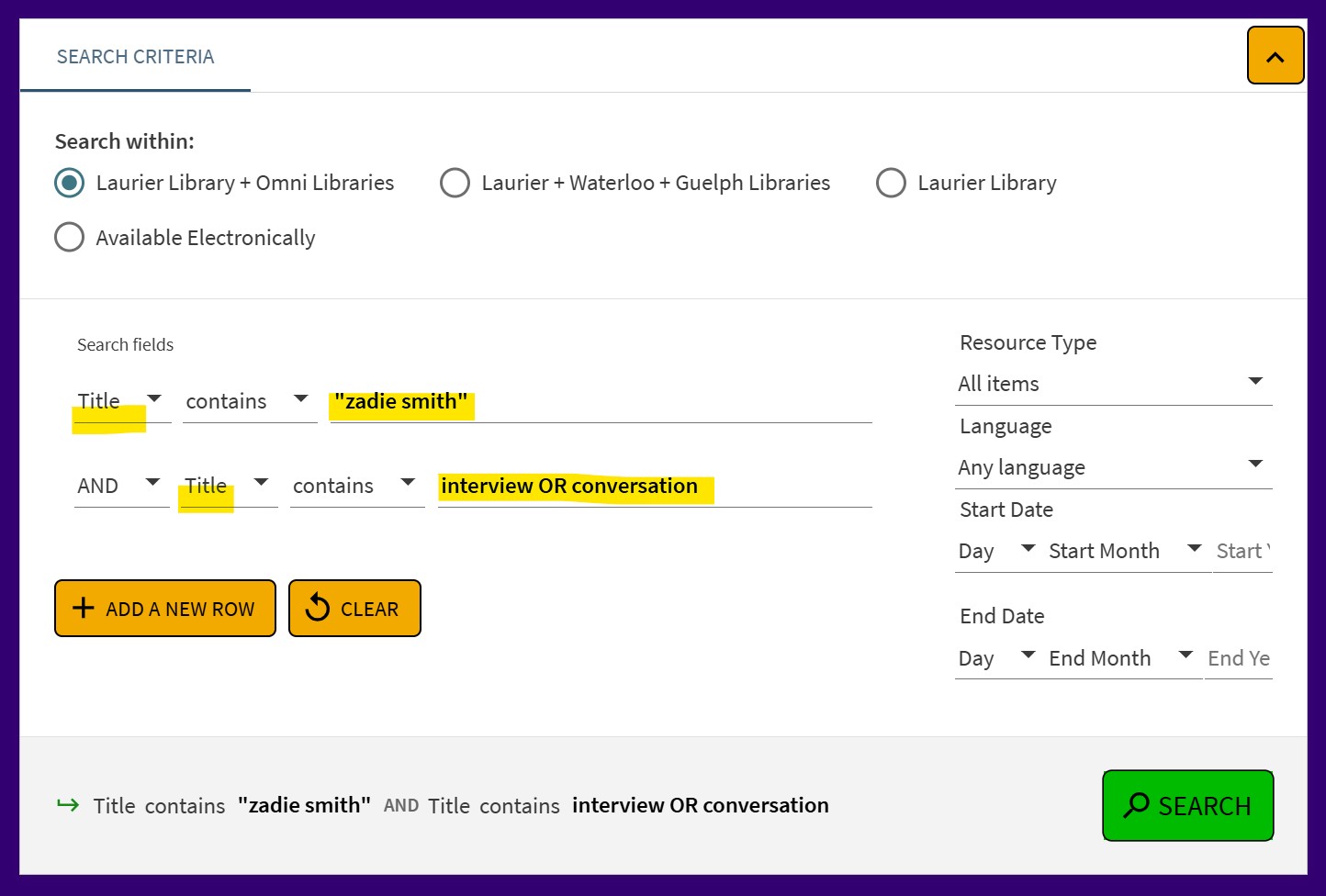
Image Description
Omni advanced search showing: In the first search box, title field with "zadie smith" in quotation marks. In the second search box, title field with interview OR conversation.

Book Reviews
- Search the book title and/or author's name and use the Reviews filter using Omni Advanced Search.
- Use quotation marks around the title and/or name to stick them together (e.g. "Feel Free" "Zadie Smith").
- Hit search.
- To the left of results, under Resource Type, select Reviews.
- Apply filter.
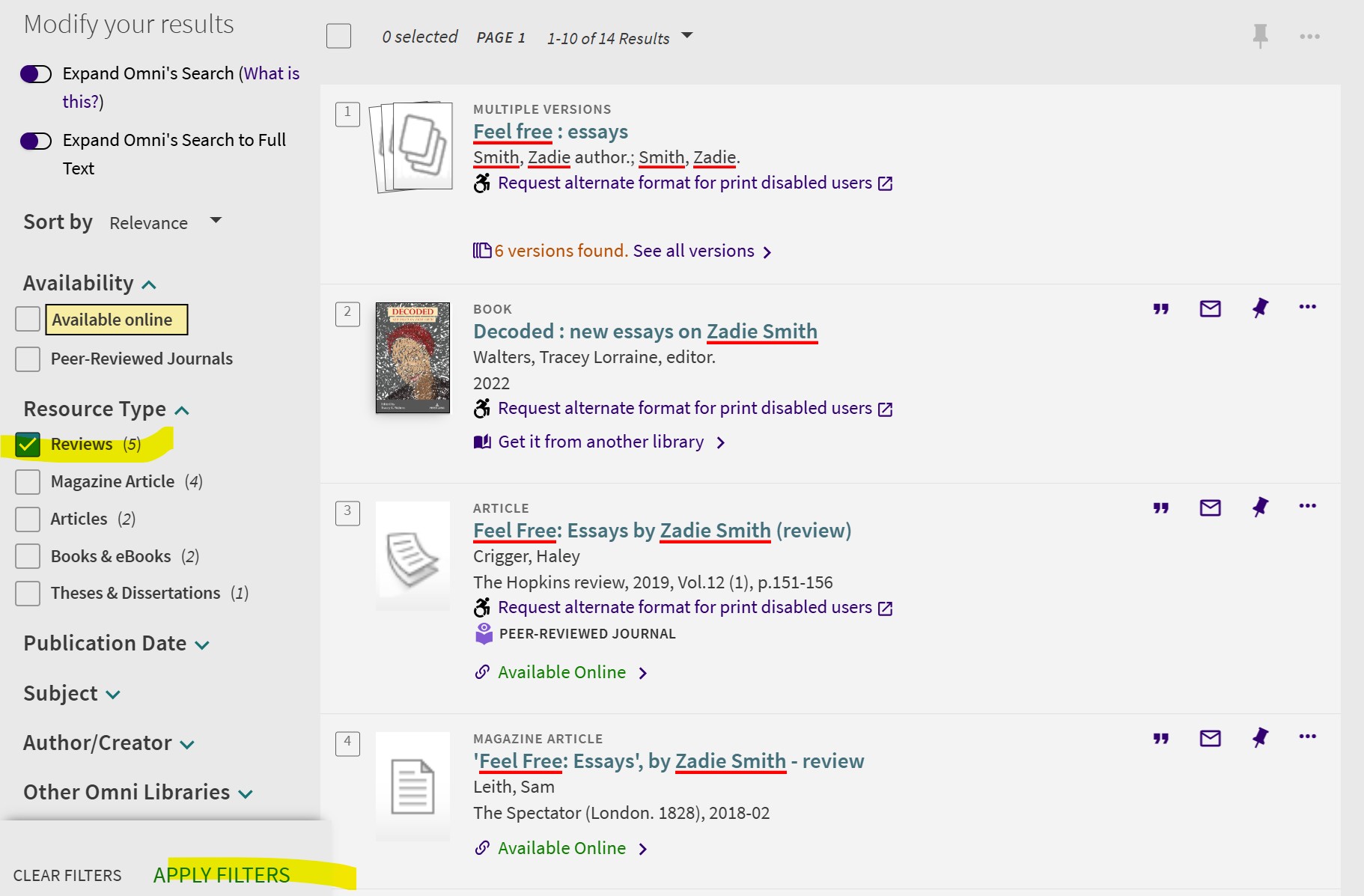
Image Description
Resource Type: Reviews (5 results) is checked off. Other options to check off include, for example, Magazine Article (4 results), Articles (2 results), Books & eBooks (2 results), Theses & Dissertations (1 result).
Academic Journal Articles
- Search the book title and/or author's name and use the Peer-reviewed Journals filter using Omni Advanced Search.
- Use quotation marks around the title and/or name to stick them together (e.g. "Feel Free" "Zadie Smith").
- Hit search.
- To the left of results, under Availability, select Peer-reviewed Journals.
- Apply filter.
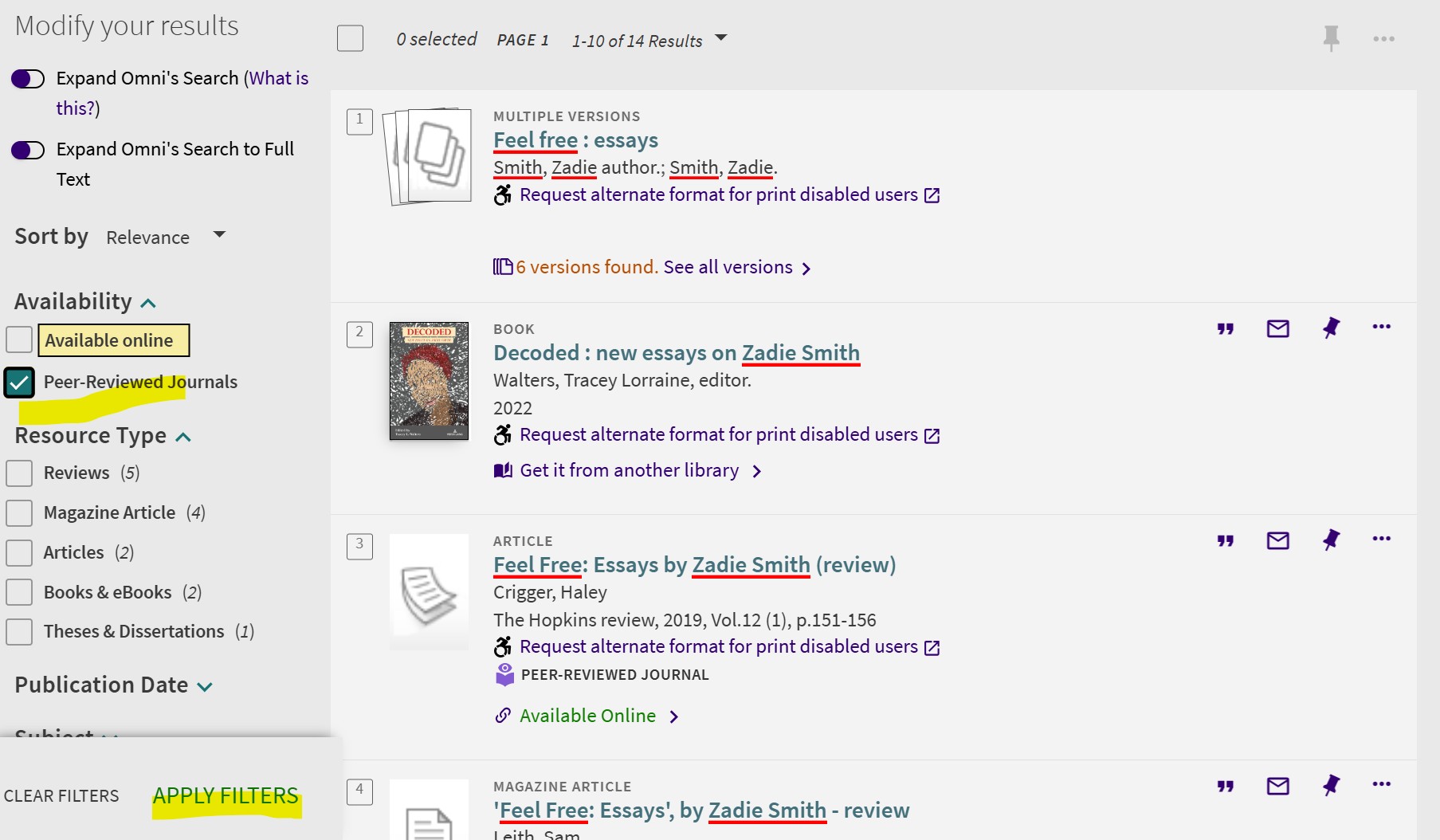
Image Description
The Peer-reviewed Journals filter is located to the left of search results under Availability. When you check it off, Apply Filters appears below.
Citing
The MLA Formatting and Style Guide from Purdue gives good templates and examples.
- Interviews - see Other Common Sources under the Interview heading.
- Book reviews - see Periodicals under the Review heading.
- Academic journal articles - see Periodicals under the Article in a Scholarly Journal heading.